A menubar app that gives Claude, ChatGPT, and other AI tools direct access to your email, Calendars, Reminders, Contacts, and Notes — plus app automation and local services — all running locally on your Mac.
Download for macOS See Features95+ MCP tools across your Mac's apps, Google Workspace, and local services.
Search, read, send, reply, draft, move, delete, flag — with markdown-to-HTML, email threading, and SPF/DKIM/DMARC authentication. Gmail OAuth and standard IMAP/SMTP. These are email accounts you set up in Claunnector — it doesn't read the accounts in Apple's Mail app.
List, search, create, update, and delete events across all your calendar providers. Supports recurrence rules and alarms via EventKit.
Full CRUD for reminders and lists — create with due dates, recurrence, and alarms. Mark complete, batch delete, and more.
Search, create, update, and organize contacts and groups across iCloud, Google, and other providers via Contacts.framework.
List, search, create, update, move, and delete notes and folders in Apple Notes. Supports plain text and HTML content.
Find, download, create and organise Drive files — folders, move, rename, copy, star, trash and restore — plus comment threads and revision history. Downloads land on disk and the AI is given a path, never the contents, so there is no size limit and binaries work. Sharing is deliberately left to you: the AI hands over the link and you decide who sees it.
Create and edit forms, add and reorder questions, and read what people submitted. Payloads are the Forms API's own shapes, so a form can be read, changed and written back without anything being lost in translation. Opt-in per Google account, like Drive.
AI tools can notify you about actions taken — delivered as native macOS banners with a full in-app notification history.
Drive Music, Pages, Numbers, and Keynote with a single run_applescript tool. AI clients fetch per-app reference docs on demand, and profiles control which apps each client may automate.
Reach local services on your Mac — Anki, Ollama, dev servers — and allow-listed external APIs with a single http_request tool. Loopback is always available; request and response bodies pass through verbatim.
A native macOS experience, right from your menubar.
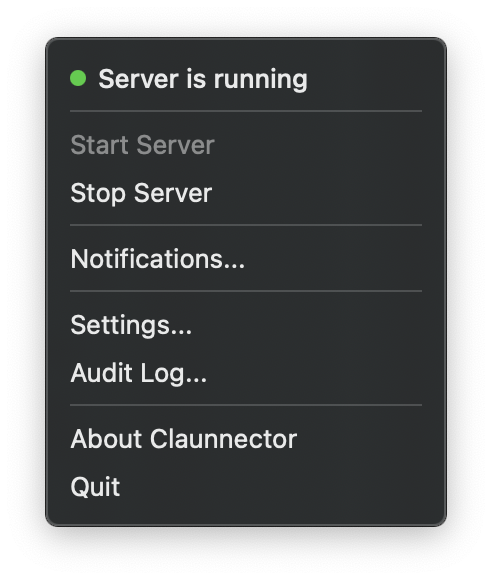
Start and stop the server, access settings, review notifications, and open the audit log — all from a single menubar icon. Always running, never in the way.
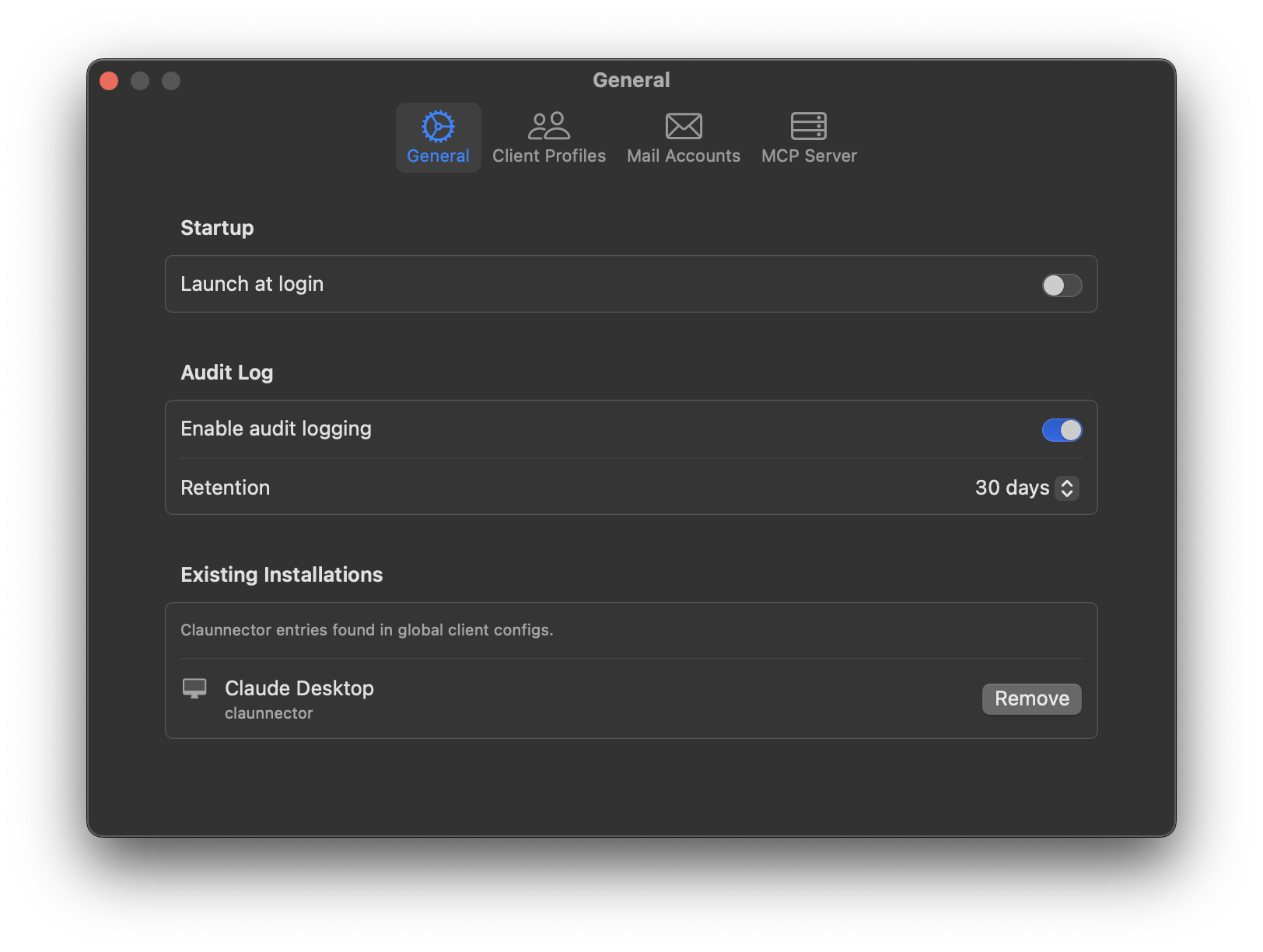
Launch at login so Claunnector is always ready. Configure audit log retention, and manage 1-click installations for Claude Desktop, Claude Code, and Claude Cowork — no manual config files needed.
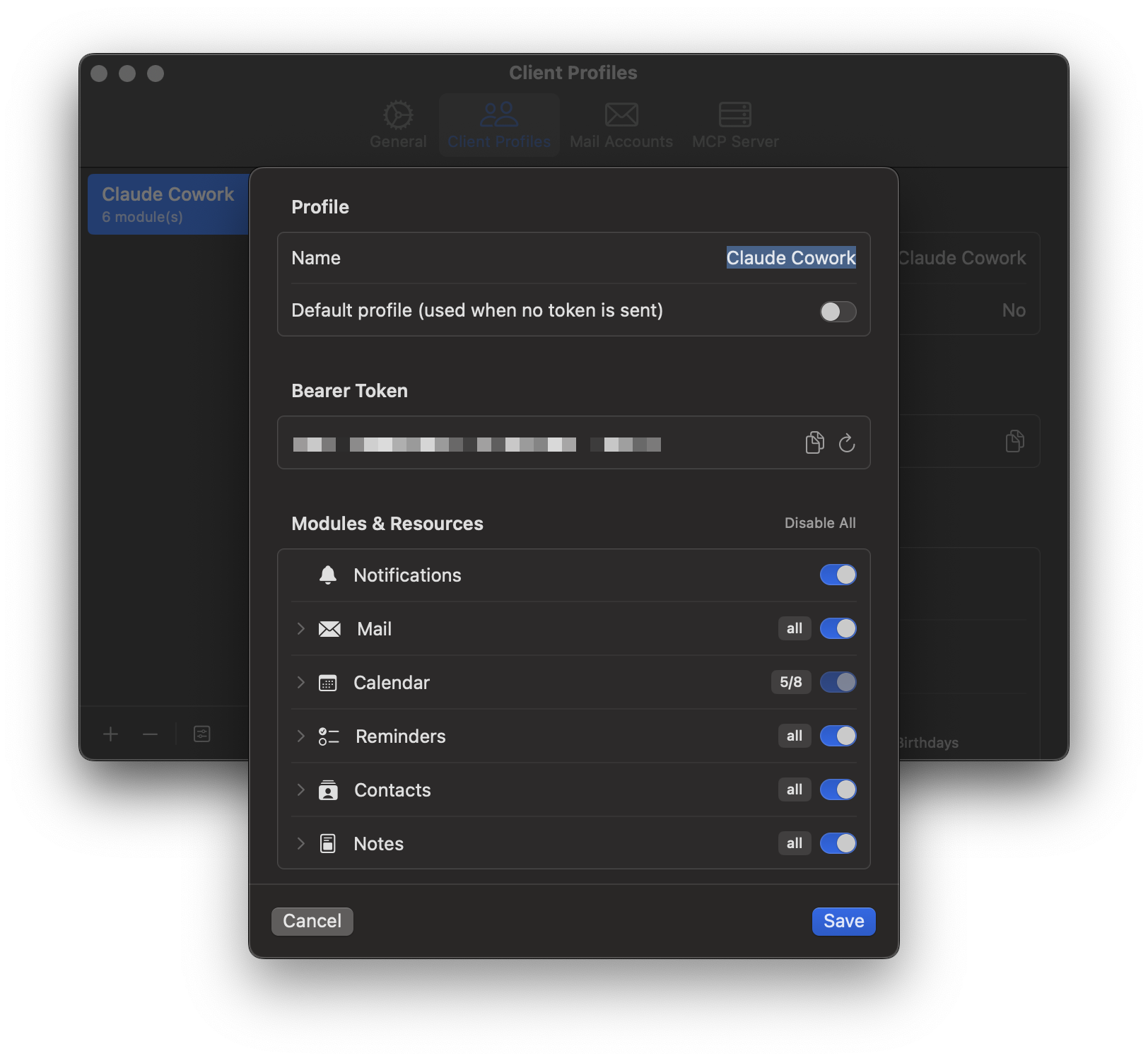
Create a profile for each AI client and control exactly which modules and resources it can access — down to individual calendars, mail accounts, and more.
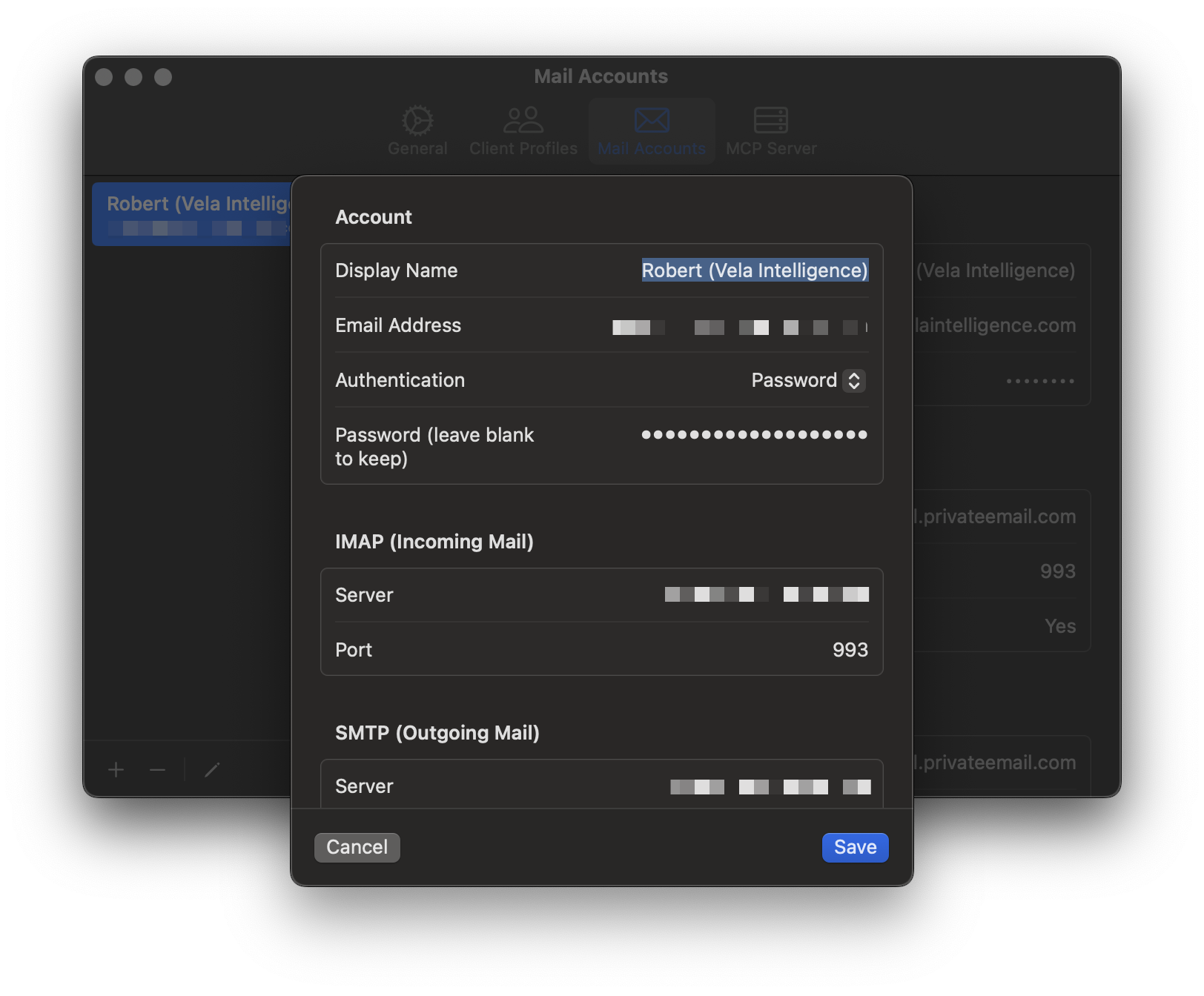
Configure multiple email accounts with full IMAP and SMTP settings, independently of Apple's Mail app. Sign in with Google OAuth for Gmail or use standard password authentication for any provider — each account is independently configurable.
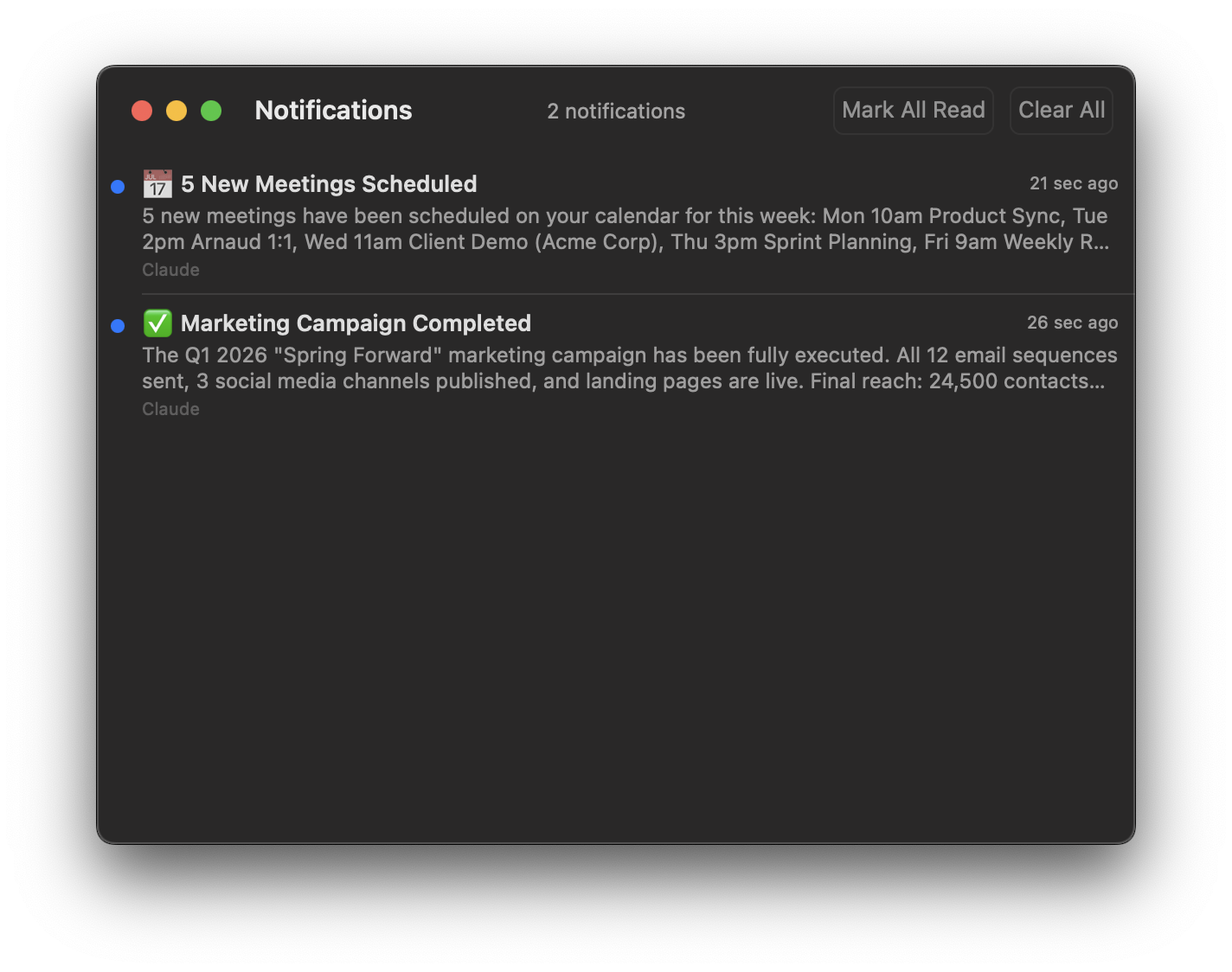
AI tools notify you about actions they've taken — scheduled meetings, sent emails, completed tasks — delivered as native macOS banners with a full history.
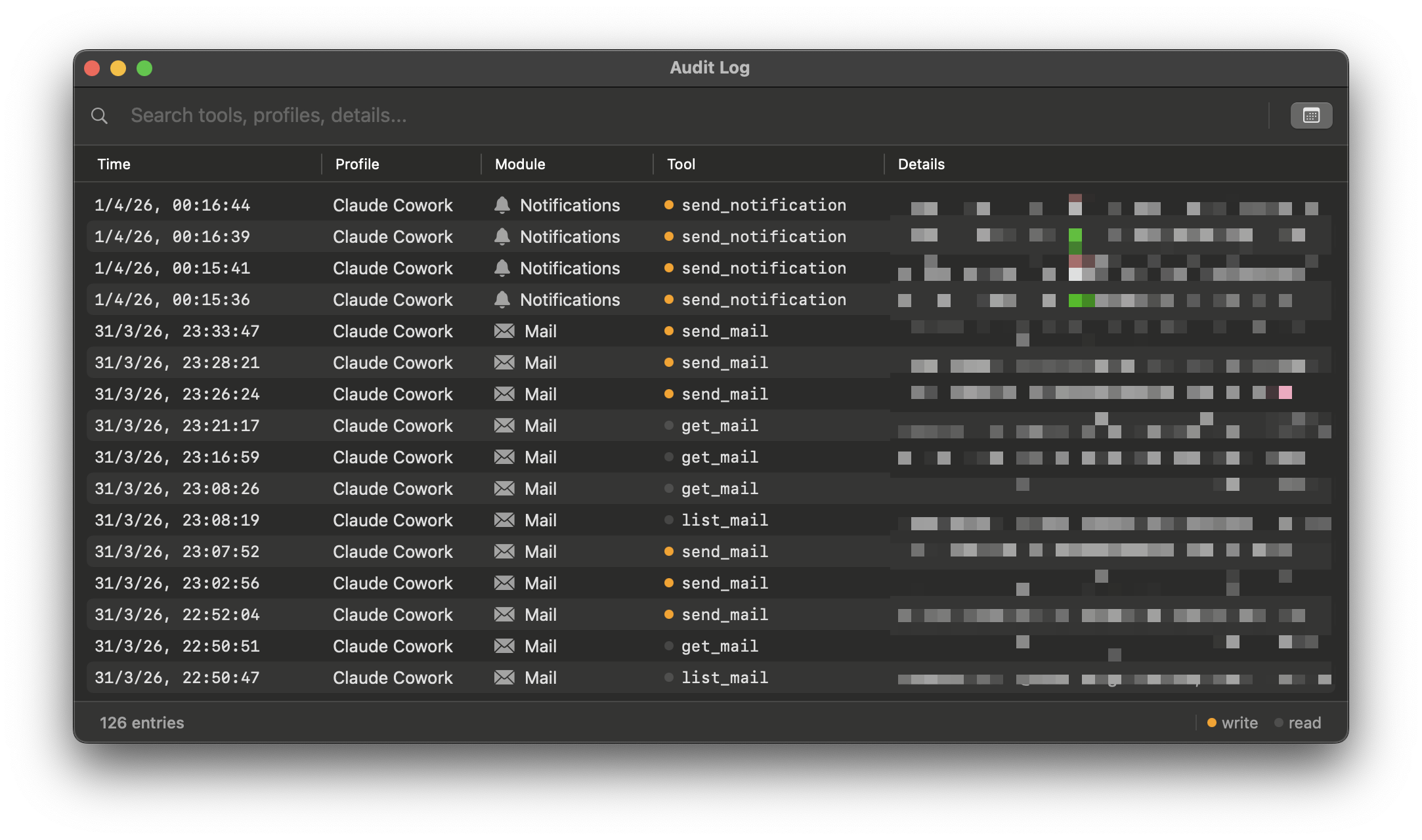
Every tool call is recorded with timestamps, the client profile, module, and full details. Search and review everything your AI tools have done.
One app. No installer. Nothing listening on a port.
Your AI client starts Claunnector's MCP server itself and talks to it over stdin and stdout — one server per conversation, which exits when the conversation does. Nothing binds a network port, so there is no address to connect to and nothing for another machine to reach.
The menubar app runs alongside it, holding your profiles, your audit log, and the keychain and automation permissions the server borrows when it needs to read a password or drive an app. Keeping those in the app means the part your AI client launches carries no credentials of its own.
Client Profiles let you control exactly which tools each connected AI client can access. Create a profile per client, assign permissions, and Claunnector enforces them with token-based authorization — so your calendar bot doesn't need access to your email, and your coding assistant doesn't need your contacts.
Any MCP-compatible client can connect over stdio.
Claude Desktop — hit the 1-click Install button in Claunnector's Settings and it writes the config for you. Once connected, Claude Desktop can read and send emails, check your calendar, create reminders, look up contacts, and search your notes, all through natural conversation. Ask it to draft a reply, schedule a meeting, or summarize your unread mail.
Claude Code — 1-click Install too, globally or per project. Install globally to give every project access to your Mac's services, or drop a .mcp.json in a project root to enable it selectively. Use it to have your coding agent send status emails, create calendar events for deadlines, or look up a colleague's contact details, without leaving your terminal.
Codex — 1-click Install as well. Codex keeps its MCP servers in a TOML file rather than JSON, and Claunnector edits only its own entry there, leaving the rest of your Codex settings exactly as they were. Restart Codex afterwards so it picks the change up.
Using the combined ChatGPT and Codex app? Work on the Codex side. The ChatGPT side does not load local tool servers at all, so Claunnector will not appear there — and neither will anything else you have connected. Then ask it to do something rather than whether it can: Codex looks up its tools only when it needs them, so “do you have the Claunnector tools?” gets answered before it has looked. Say “search my contacts for Smith” and it will find them and use them.
For ChatGPT and any other MCP-compatible client, point the client at the launcher inside the app, and give it the server as its first argument:
command: /Applications/Claunnector.app/Contents/Helpers/claunnector-disclaimer
args: /Applications/Claunnector.app/Contents/Helpers/claunnector-daemon
The launcher matters. macOS credits a helper's privacy requests to whichever app started it, so a client that does not itself hold Contacts permission would have Contacts refused outright — without any prompt, and whatever you had already allowed Claunnector. Started this way, the server answers for itself and the permission you granted Claunnector is the one that counts. It changes nothing else.
Add --token and a profile's token after that to scope what the client may reach. Settings › Client Profiles has an Export Connection Info button that writes the whole entry out as JSON, so there is nothing to type by hand.
Your data never leaves your Mac.
Claunnector never listens on the network. Your AI client talks to it over stdin and stdout, so there is no address for anything else to reach.
Developer ID signed, notarized by Apple, and running under the hardened runtime. macOS checks it before every launch, and updates are verified against the same certificate before they install.
Passwords and OAuth tokens stored securely via macOS Security framework. Never in plaintext.
Drag to Applications and launch. No installer, no login scripts, nothing left behind elsewhere on your Mac. The MCP server lives inside the bundle and runs only while a conversation is open.
Configure access per AI client at the service level (Mail, Calendar, Contacts, etc.) and at the individual resource level. Each profile gets its own bearer token for authorization.
Every request from every AI client is tracked — which profile, module, tool, and when. A searchable log you can review anytime to make sure everything is as expected.
Download Claunnector and set it up in under a minute. Requires macOS 15 or later.
Download for macOS